Your First Session with Operum
This guide walks you through exactly what to expect from the moment you download Operum to your first successful agent task. No surprises - just a clear path to AI-powered automation.
Download & Install
~2 minutesDownload Operum from operum.ai/download. The installer is available for:
- macOS - Apple Silicon (.dmg) or Intel (.dmg)
- Windows - Installer (.exe)
- Linux - Debian (.deb), Fedora (.rpm), or Arch (convert .deb)
Run the installer and follow the prompts. Operum will install to your Applications folder (macOS), Program Files (Windows), or system path (Linux).
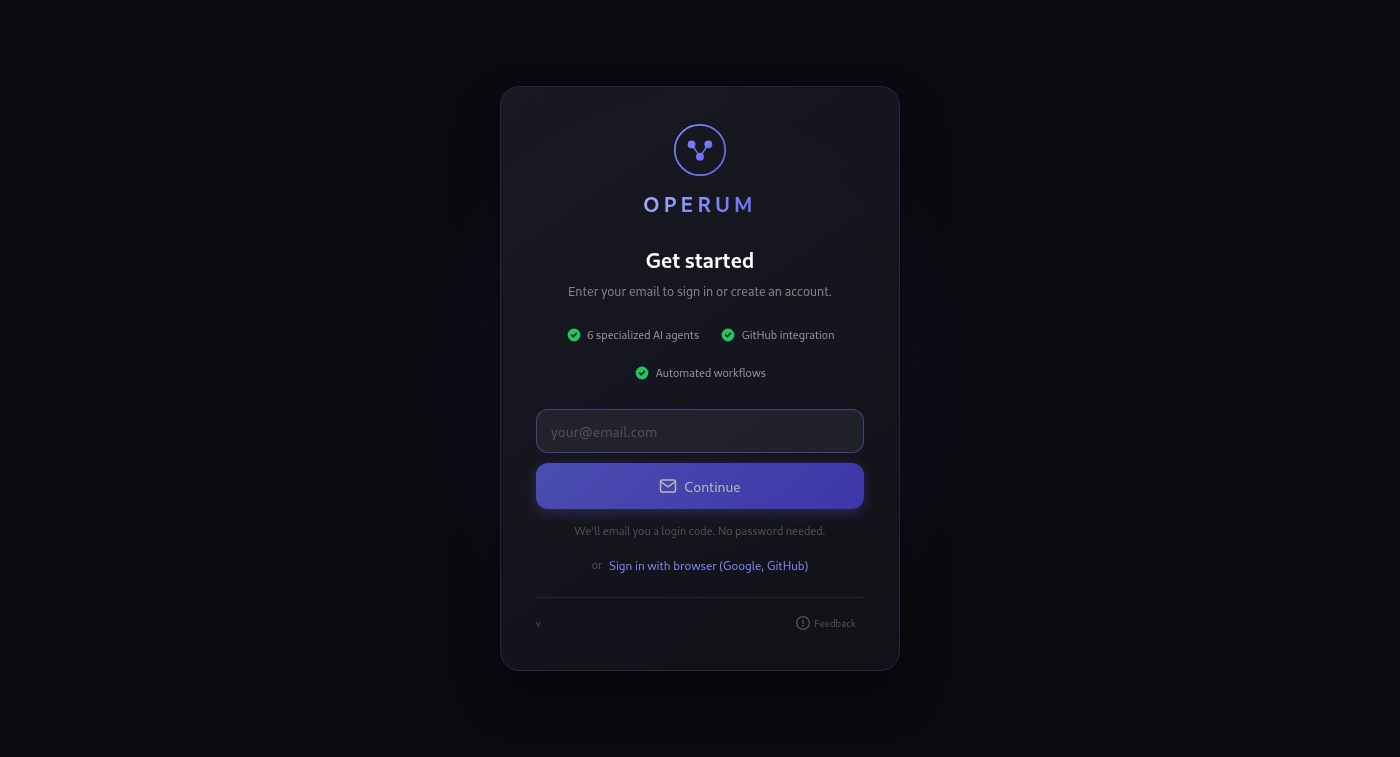 The login screen you'll see on first launch
Install Dependencies
~3 minutesOn first launch, Operum checks for required tools. If any are missing, you'll see a dependency installer:
macOS/Windows: Click the install button for each - it's automatic via Homebrew or winget.
Linux: Copy the displayed commands to your terminal (requires sudo).
Sign In
~1 minuteClick "Login with Operum" to authenticate:
- Your browser opens to operum.ai
- Sign in with GitHub or Google OAuth
- You're automatically redirected back to the app
Your session is stored securely with automatic token refresh - you won't need to log in again unless you explicitly sign out.
Create Your First Team
~2 minutesA team is a collection of AI agents working on a specific project. Each team connects to a git repository.
- Click "Create Team"
- Enter a name (e.g., "My SaaS Project")
- Select a git repository directory on your machine
- Click Create
Operum creates a .operum/knowledge/ folder in your repo to store project context. This is git-versioned, so your knowledge base is backed up with your code.
 Your dashboard after creating a team - ready to start agents
Meet Your Agents
Understanding the teamYou have 6 specialized AI agents, each with a specific role:
The coordinator. Manages priorities, tracks progress, and keeps everyone aligned. Start here for planning.
Reviews tasks for technical implications. Provides architectural guidance and maintains design docs.
The builder. Implements features, fixes bugs, writes tests, and creates pull requests.
Quality assurance. Reviews PRs, runs tests, reports results, and approves for merge.
Growth focused. Handles SEO, content strategy, social media, and analytics.
User support. Monitors Discord, Twitter, Reddit. Responds to questions and feedback.
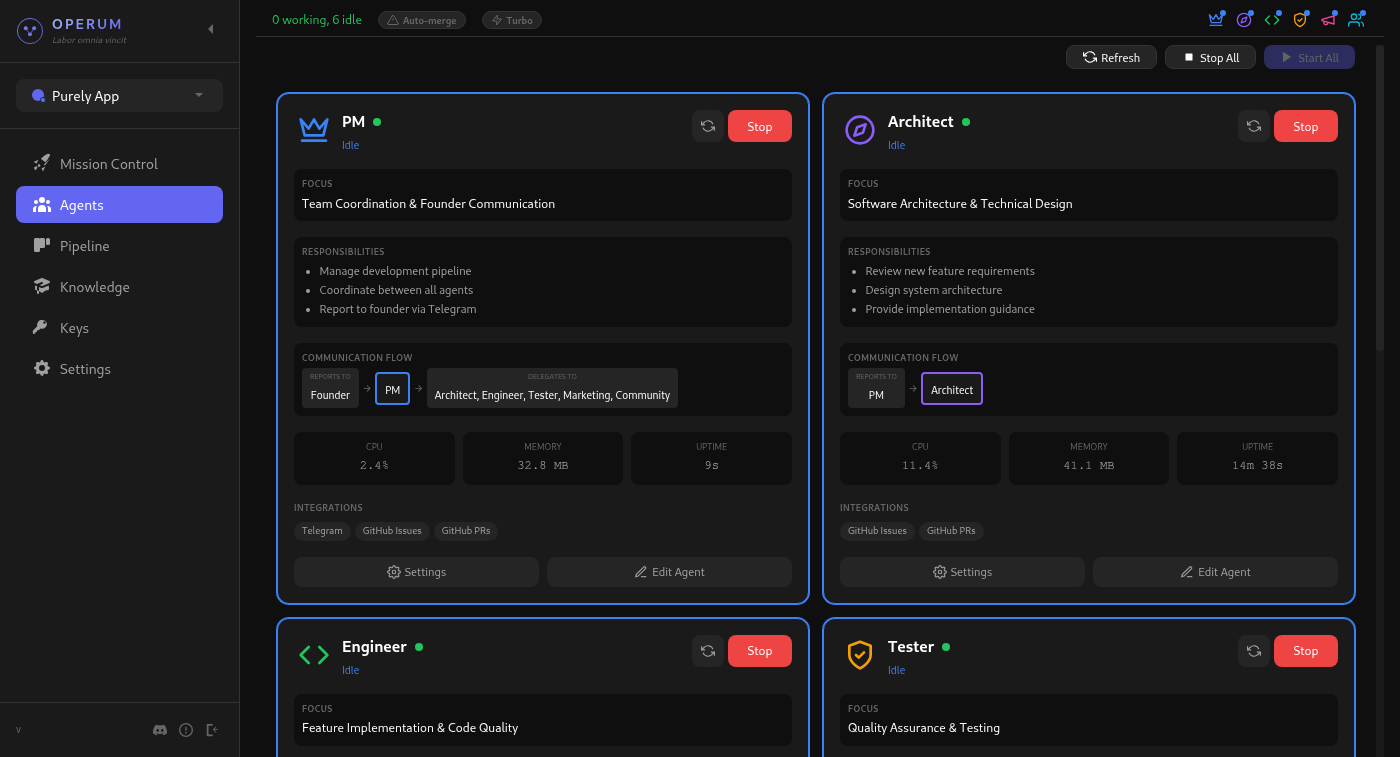 The Agents page showing all 6 specialized agents
Start an Agent
~30 secondsStarting an agent is simple:
- Go to the Agents page or use the dashboard
- Click Start on any agent card
- The agent opens in a terminal window powered by Claude Code
- The status indicator turns green when ready
You can start all agents at once using the Start All button, or enable Auto-start in Settings to launch them automatically when Operum opens.
Give Your First Task
~1 minuteWith an agent running, you can give it tasks. From the dashboard, use the command input:
Review the codebase and suggest 3 improvements we should prioritize this week.Or for engineering work:
Fix the login form validation bug mentioned in issue #42.The agent will:
- Analyze your repository (if connected)
- Access the knowledge base for project context
- Execute the task based on its specialization
- Report results in the Activity Feed
 The dashboard showing agents working with real-time activity
Monitor Progress
OngoingOperum provides several ways to track what's happening:
Real-time stream of all agent actions, completions, and requests.
Visual Kanban-style board showing issues moving through stages.
Token usage, PRs merged, issues closed, and productivity stats.
Quick glance at how many agents are working, idle, or need attention.
 The pipeline board tracking work across development stages
Build Your Knowledge Base
Over timeThe knowledge base is shared context that all agents can access. It includes:
- Project info - Name, description, website, repository
- Goals - Strategic objectives and near-term priorities
- Architecture - Technical documentation and design decisions
- Business - Business model, processes, and workflows
- Links - Important URLs, social media, documentation
The PM agent can help you build this through a guided onboarding conversation, or you can edit files directly in .operum/knowledge/.
 The knowledge base editor with project context
Let Them Work
Autonomous operationOnce configured, Operum agents work autonomously:
- PM monitors other agents and pushes work forward
- Engineer creates PRs for completed tasks
- Tester reviews PRs and runs tests automatically
- You review and merge when ready
You'll receive notifications when agents need your input (approvals, decisions, clarifications). Otherwise, they work in the background while you focus on what matters.
What to Expect Day-to-Day
Agent Responses
Agents communicate through status prefixes:
DONE:- Task completed successfullyREQUEST:- Agent needs your input or approvalERROR:- Something went wrong (usually recoverable)
Automatic Coordination
When one agent completes work, the PM is notified and can delegate follow-up tasks. For example: Engineer finishes a PR → PM tells Tester to review it.
GitHub Integration
With GitHub connected, agents can:
- Read issues and PRs for context
- Create branches and commits
- Open pull requests with descriptions
- Update issue labels based on progress
Token Usage
Agents use Claude API tokens. Monitor usage in the Metrics dashboard. Costs depend on task complexity - simple queries use fewer tokens than large code changes.
Common Questions
Can I use Operum without GitHub?
Yes. GitHub integration is optional. Agents can work with local code, though some features (automatic PR creation, issue tracking) require GitHub.
What happens if an agent gets stuck?
The PM agent monitors for stuck agents and alerts you. You can also manually stop and restart any agent, or give it clarifying instructions.
Can I work on code while agents are running?
Yes. Agents work in isolated environments. However, avoid editing the same files an agent is working on to prevent conflicts.
How do I stop all agents?
Click "Stop All" on the dashboard, or close the Operum app. Agents stop gracefully and save their state.
Ready to get started?
Download Operum and have your AI team running in under 10 minutes.
Download Operum